
How to Find Hidden Photos on iPhone (2026 Guide)

Knowledge
2025-02-07

Last Update: 2026-9-21

If a photo has disappeared from your iPhone’s camera roll, it’s usually not gone — it’s hidden. Apple’s Photos app has a built-in Hidden album that removes images from your main library view without deleting them. Here’s the fastest way to get them back, followed by what to do if that doesn’t solve it.
Quick Answer: Unhide Photos on iPhone in Under a Minute

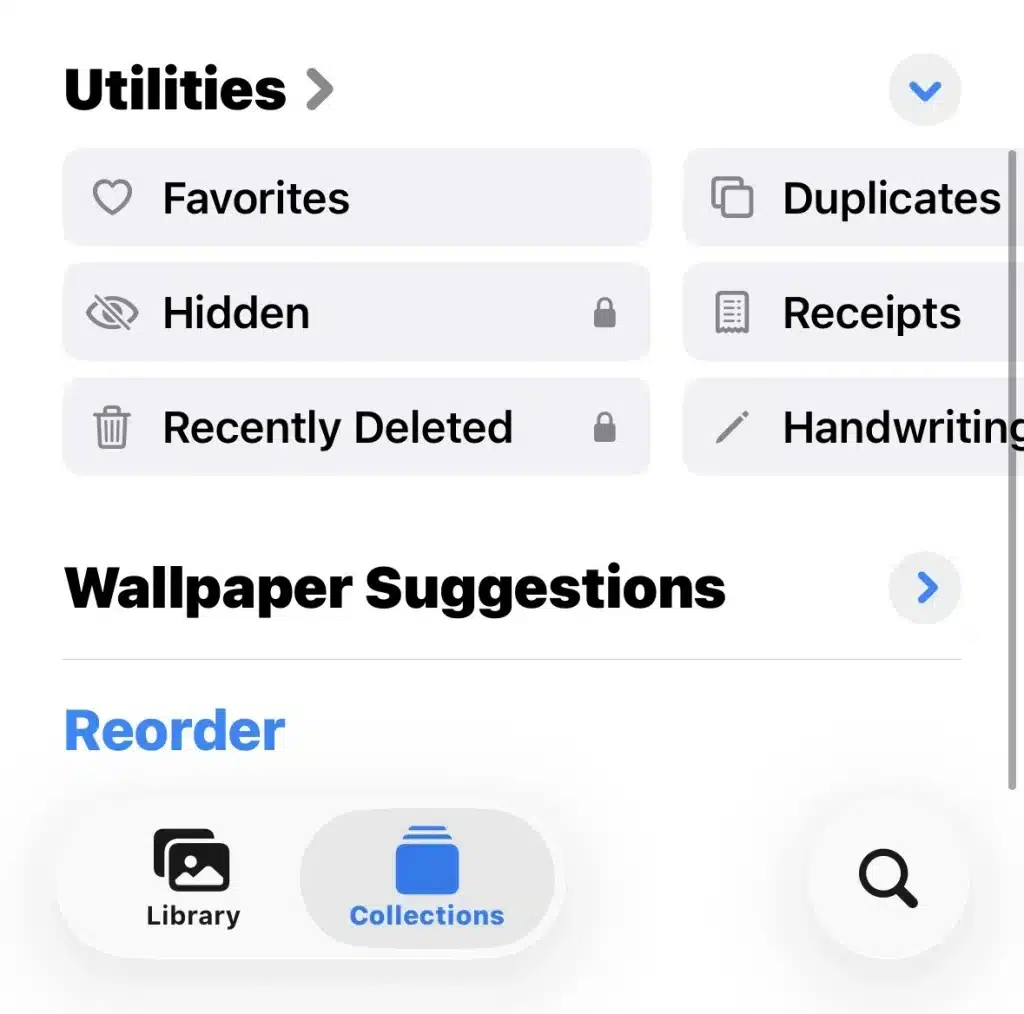
iPhone Photos app showing the Hidden album for hidden photos

  1. Open the Photos app.
  2. Tap Collections at the bottom (one of the two tabs alongside Library, restored in iOS 26/27).
  3. Scroll to the Utilities section and tap Hidden.
  4. Authenticate with Face ID, Touch ID, or your passcode — this lock has been on by default since iOS 16, and still applies unchanged in the current iOS 27.
  5. Tap Select, choose the photos you want back, tap the Share/More icon, then Unhide.

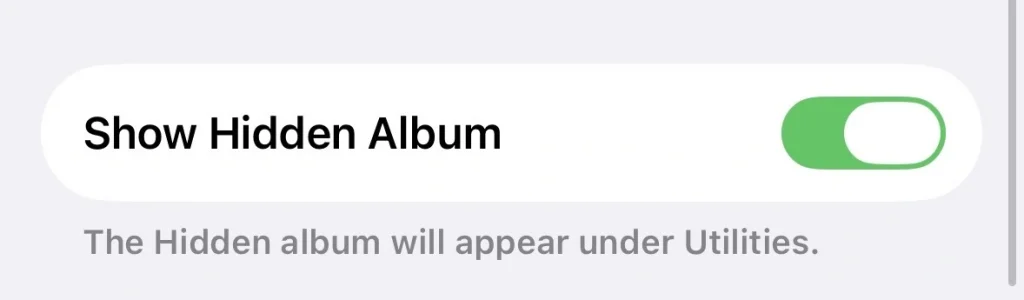
iPhone Hidden Album settings with the option to show or hide the album

If you don’t see a “Hidden” album at all, it’s likely because the setting is turned off. Go to Settings > Apps > Photos, and make sure Show Hidden Album is toggled on.

Why You Might Not Find Them There

Not every “missing” photo is in the Hidden album. Before assuming the worst, check these:

  • Recently Deleted, not Hidden. Photos you deleted (rather than hid) sit in Collections > Utilities > Recently Deleted for 30 days before permanent removal. Tap the photo, then Recover.
  • Hidden but not syncing. If you use iCloud Photos, hidden images sync across all signed-in devices — but a slow or interrupted sync can make them appear missing on one device temporarily. Check Settings > [your name] > iCloud > Photos to confirm syncing is on and complete.
  • Hidden inside a third-party app. Some people store private photos in a separate vault or “calculator” app rather than the native Photos app. If you don’t recognize an app on your Home Screen, it may be exactly what it looks like — or it may not be. These apps store photos in their own encrypted storage, invisible to the Photos app entirely.
  • Locked out by Screen Time restrictions. If Screen Time content restrictions are enabled on a shared or managed device, the Hidden album toggle itself can be disabled by a parent or admin account.

Is the Hidden Album Actually Private?

Not from everyone. The Hidden album is protected by Face ID/Touch ID/passcode as of iOS 16, so it’s reasonably secure against casual snooping. However, it is not encrypted the way a dedicated vault app is, and hidden photos still count toward your iCloud storage and appear in iCloud backups. If someone has your Apple ID password, or physical access to an unlocked phone, hidden isn’t the same as protected.

Finding Hidden Photos in a Backup

If a photo was hidden or deleted before you got a new phone — or before a factory reset — it may still exist in an old backup rather than on the device itself:

  • iCloud backup: Restoring a device from an iCloud backup (Settings > General > Transfer or Reset iPhone) will bring back the photo library as it existed at backup time, hidden items included.
  • iTunes/Finder backup: A local encrypted backup on a Mac or PC can be restored the same way, and typically preserves more metadata than an iCloud backup.

Neither method lets you selectively pull out just one photo without restoring the whole backup to a device — which is where the limits of “do it yourself” recovery usually show up.

When You Need More Than the Basic Steps

The steps above cover the vast majority of “where did my photo go” situations. But there are legitimate cases where more is needed — a family member trying to recover photos from a deceased relative’s locked phone, a business investigating a compliance issue on a company-issued device, or a legal matter where photos stored in a locked third-party app need to be recovered and verified without altering the original data.

This is different from everyday troubleshooting: it usually involves a locked or damaged device, photos deleted (not just hidden) and no longer in Recently Deleted, or images hidden inside an encrypted app with no accessible password. This is where consumer-level tools stop being useful, because standard restore methods can overwrite or alter the very data you’re trying to recover — which matters if that data needs to hold up as evidence.

SalvationDATA AFA9500-SalvationDATA's Mobile Forensic Solution

SalvationDATA’s AFA9500 mobile forensics system is built for exactly this gap. It performs deep recovery of deleted and hidden media — including content stored inside third-party vault apps — directly from a device or its cloud backups (iCloud, WhatsApp, Telegram, and other mainstream apps), without altering the original data. It’s used by law enforcement, corporate security teams, and digital forensics professionals in cases where photo recovery needs to be both thorough and defensible.

If you’re in this situation as an individual rather than an investigator, the practical starting point is usually a licensed digital forensics service provider rather than attempting device-level recovery yourself.

FAQ

  1. How do I access the Hidden album without Face ID?
    If Face ID fails, iOS falls back to your device passcode automatically — there’s no way to view the Hidden album without one or the other on iOS 16 and later.
  2. Can I find hidden photos on someone else’s iPhone?
    Only with their device unlocked and Face ID/passcode authenticated by them, or with their Apple ID credentials. There’s no way to view another person’s Hidden album remotely or without authentication.
  3. How do I find hidden videos on iPhone?
    The same way — videos hidden through the Photos app live in the same Collections > Utilities > Hidden location as photos, not a separate album.
  4. Can deleted photos still be recovered after 30 days?
    Once a photo is removed from Recently Deleted (or 30 days pass), it’s no longer recoverable through the Photos app itself. At that point, recovery depends on whether an iCloud or local backup from before the deletion still exists, or on professional-grade data recovery methods.
  5. Does hiding a photo remove it from iCloud?
    No. Hidden photos still sync to iCloud and count toward your storage if iCloud Photos is enabled — hiding only affects visibility in the app, not storage or backup behavior.