FAS7900 – A streamlined forensic acquisition system for fast, non-invasive data extraction and analysis, without the need for computer disassembly. Supporting multiple OS, it captures memory and disk images, and includes secure data wiping.
Forensic Expansion Dock – A compact solution for fast, reliable data acquisition from various storage media. With support for multiple interfaces, it ensures secure, stable, and high-speed forensic data transfer for streamlined workflows.
SD Card Recovery Guide: Diagnosing and Fixing Damaged SD Cards
Knowledge
2024-08-20
Last Update: 2026-7-24
SD cards are used across a huge range of devices — cameras, phones, drones, dash cams, and more — to store data that often matters more than the card itself: personal photos, business records, footage that can’t be reshot. When a card fails, getting that SD card data back can matter for work or personal reasons alike.
But SD cards don’t fail in just one way, and that’s the part most guides skip over. A card that’s become corrupted through a file system error or an improper ejection behaves very differently under the hood from one that’s stopped working after being dropped, bent, or exposed to water. Accidental deletion is its own case entirely — the data usually isn’t damaged at all, just no longer indexed. Before jumping into a recovery method, it helps to understand why your card is failing, because that determines which fix will actually work.
Not every SD card issue calls for the same solution. Start by narrowing down which category your situation falls into:
The card is detected, but files are missing, corrupted, or the card asks to be formatted→ This usually points to logical damage — a file system or index problem, not physical failure. Software-based recovery is typically the right starting point.
The card behaves like it’s read-only, or refuses to save new files→ Often a write-protection issue rather than data loss at all.
The card isn’t recognized by your computer at all → Could be a connection or hardware issue on your end, or it could indicate deeper physical or controller-level damage to the card itself.
None of the above resolve it, or the card shows signs of physical damage(cracks, water exposure, a controller that won’t initialize) → Software tools generally can’t help here; this is where professional, forensic-grade recovery becomes necessary.
The sections below are organized around these scenarios rather than as a flat list — find the one that matches your situation first.
Understanding Why SD Cards Fail and How to Fix It
SD cards store data on NAND flash memory, managed by a small onboard controller that handles wear leveling (spreading writes evenly across memory cells) and error correction. Most everyday failures — accidental deletion, formatting, or a corrupted file table — are logical issues: the data is still physically present on the NAND chip, but the card’s index no longer knows how to find it, which is why recovery software can often bring it back.
Physical or controller-level failures are a different problem entirely. If the controller itself has failed, or the NAND chip has sustained physical damage, the card may not mount at all — and no amount of software scanning can recover data that the operating system can’t even see. These cases typically require lab-level intervention, such as direct chip-level (chip-off) access to the NAND memory, which is far beyond what consumer software is built to do.
With that distinction in mind, the sections below walk through each scenario in turn — starting with the most common one: a card your computer can still see.
1. If the Card Is Detected: Logical Recovery Options
Use Data Recovery Software
DRS – SalvationDATA’s Data Recovery Solution
If your SD card is detected but files are missing, corrupted, or inaccessible, data recovery software is usually the first thing worth trying. These tools scan the card’s storage for file signatures and index fragments that the file system has lost track of, and in most cases involving deletion or minor file system errors, they can successfully recover the missing data.
Steps: Install a data recovery tool on your computer → connect the damaged SD card via a card reader → select the SD card from the list of available drives → run a scan → review the results and select the files to recover → save recovered files to a different drive, not back onto the SD card, to avoid overwriting anything not yet recovered.
Engineer Note: Saving recovered files back onto the same card is one of the most common mistakes we see — it can overwrite exactly the data you’re still trying to recover.
Run CHKDSK Command
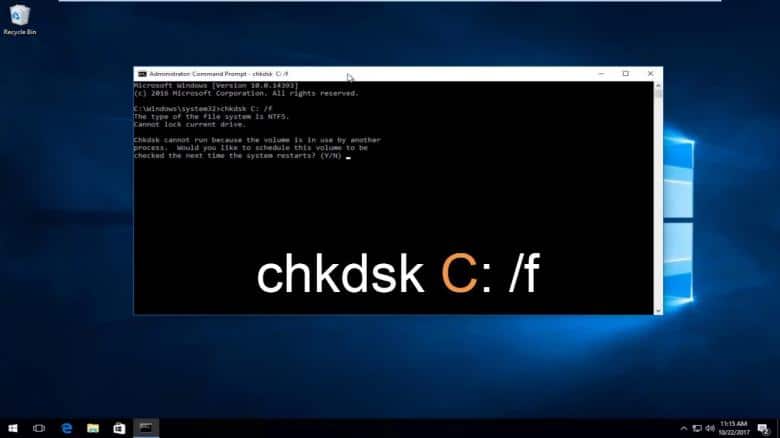
CHKDSK is a built-in Windows utility that can repair file system errors without needing third-party software — useful when the issue is index-level rather than data loss itself.
Steps: Insert the SD card → open Command Prompt → run chkdsk X: /f (replacing X with your card’s drive letter) → follow the on-screen prompts. If the card becomes accessible again afterward, you can proceed with data recovery software for anything still missing.
Use Disk Management Tools
Windows’ built-in Disk Management can help when the issue involves partitioning — such as unallocated space or a partition error — rather than individual missing files.
Steps: Insert the card → right-click Start → select Disk Management → locate the SD card → check for unallocated space or partition errors → create or repair the partition as needed. Resolving partition-level issues here often clears the way for recovery software to do the rest.
2. If the Card Behaves Like It’s Locked
Check and Adjust Write Protection
Some SD cards have a physical write-protection switch that, when engaged, prevents any changes to stored data — including recovery software’s ability to write back. If your card seems to allow reading but not writing, this is worth checking before anything else.
3. If the Card Isn’t Recognized At All
Rule Out the Basics First
Before assuming the card itself has failed, a few zero-cost checks are worth running through — they resolve a surprising number of “not recognized” cases on their own.
Steps: Remove the card and check its metal contacts for dust, dirt, or corrosion, then gently clean them with a dry cloth if needed → confirm your device or card reader actually supports the card’s format and capacity (older devices, for instance, often don’t support high-capacity SDXC cards) → check that your card reader’s driver is up to date, since an outdated or corrupted driver can prevent a card from being recognized even when the card itself is fine.
Try Another Computer or USB Port
Before assuming the card itself has failed, rule out the possibility that the problem is with your computer or card reader rather than the card.
Steps: Remove the card from the current port → try a different computer or USB port/card reader → check whether it’s now recognized.
If the card still isn’t recognized anywhere, this is a signal worth taking seriously — it may indicate controller or physical-level failure, which software cannot fix (see the next section).
When Software Can’t Help: Professional Recovery
If your SD card shows signs of physical or controller-level damage — it isn’t recognized on any device, has visible physical damage, or none of the software-based methods above resolve the issue — this typically falls outside what any consumer software can address, regardless of which tool you use.
Engineer Note: This is the point where we’d stop recommending software entirely. Attempting repeated scans or repair attempts on a physically failing card can actually reduce the odds of successful recovery by causing further wear on an already-compromised chip.
This is the scenario forensic-grade recovery is built for. SalvationDATA’s DRS Data Recovery System is designed specifically for physically and logically damaged storage media, including SD cards, using recovery approaches — such as direct memory-level analysis — that go well beyond what software scanning alone can reach.
Conclusion
Recovering data from a damaged SD card starts with understanding what kind of failure you’re actually dealing with — logical, connection-related, or physical — rather than working through a list of fixes at random. For logical issues, built-in tools and recovery software resolve most cases. For write-protection or connection problems, the fix is often simpler than it first appears. But when a card shows signs of physical or controller failure, forensic-grade recovery through a system like SalvationDATA‘s DRS is the option built to handle it — software alone isn’t designed to reach that level of damage.
Final Tips
Handle SD cards carefully to avoid physical damage in the first place.
Back up important files regularly to reduce what’s at stake if a card fails.
If a card won’t mount and shows no obvious cause, stop retrying repeatedly — repeated attempts on a failing card can make recovery harder, not easier.