
How to Use Hashcat: Step-by-step Guide for Password Recovery

Knowledge
2025-01-17

Last Update: 2026-8-21

Cybersecurity is not only important, but also essential in the fast-paced digital world of today. Recovering lost or forgotten passwords can be a difficult task, regardless of your expertise in digital forensics or sensitive data management. Let’s introduce Hashcat, a strong, adaptable, and effective password recovery tool that is used by experts all over the world.

Hashcat is a revolutionary tool that goes beyond simple password cracking. With its unrivaled speed and support for a large variety of hash algorithms, Hashcat has established itself as a vital tool for cybersecurity professionals and users of digital forensics software. It is both performance-driven and adaptable due to its capacity to utilize both GPU and CPU resources.

This article offers a step-by-step approach to how to use Hashcat, helping you avoid common pitfalls and maximize its capabilities, updated for hashcat v7.1.2 (the current stable release as of August 2026). With this guide, you’ll unlock the full potential of Hashcat, empowering you to tackle password recovery challenges like a pro.

Getting Started with Hashcat

1. System Requirements

To get started with how to use Hashcat, it’s essential to understand the system requirements. As of August 2026, the current stable release is hashcat v7.1.2, which merges the CPU and GPU engines into a single binary (the old CPU-only build is now called hashcat-legacy) and adds an Assimilation Bridge that lets CPUs, FPGAs, and embedded interpreters join the cracking pipeline alongside GPUs. Hashcat’s performance thrives on robust hardware, especially GPUs, which deliver unparalleled speed compared to CPUs. While GPUs are ideal for heavy workloads, CPUs can still handle smaller tasks effectively, making Hashcat adaptable to various setups.

Hashcat supports all major operating systems, including how to use Hashcat Windows, Linux, and macOS, ensuring flexibility across different environments. Driver requirements now differ by platform: AMD GPUs on Linux need “AMD Radeon Software for Linux” with ROCm, while AMD GPUs on Windows need “AMD Adrenalin Edition” plus the “AMD HIP SDK”. Intel and AMD CPUs need the “Intel CPU Runtime for OpenCL” (or PoCL), and Intel GPUs need the “Intel Graphics Compute Runtime” (NEO). Ensure your system meets these minimum specifications for optimal performance.

2. Installing Hashcat

Installing Hashcat is straightforward if you follow the right steps:

  1. Visit the official hashcat.net download page and grab the latest stable release (v7.1.2 as of August 2026, or check for a newer point release).
  2. Extract the archive using 7z x hashcat-7.1.2.7z— the official guidance is to always use 7z x rather than a generic unzip tool, since it preserves the full file paths inside the package.
  3. Open the command line and navigate to the folder containing the extracted files.

Common installation errors, such as missing dependencies, can be frustrating. If you encounter issues like “missing OpenCL drivers,” make sure your GPU drivers are up to date and compatible with Hashcat (see the platform-specific driver list above). Similarly, for how to use Hashcat to crack password effectively, verify that your system’s libraries and tools are installed correctly.

Security note: three unpatched vulnerabilities (CVSS 9.8) were disclosed in hashcat v7.1.2 in May 2026, affecting how malformed hash/rule files are parsed. Until an official patch ships, run Hashcat inside a virtual machine or container when working with hash files or rule sets from sources you don’t fully control, and treat downloaded rule files with the same caution as executable code.

3. Basic Commands and Usage

Hashcat’s user-friendly syntax makes it a favorite among professionals. Key commands include:

syntax

For example, to get back a lost password from a database, all you have to do is pick a wordlist attack and the hash type (for example, MD5). Hashcat is a popular password recovery tool because it can mix attacks.

4. Hash Mode Reference and Example Commands

Each hash type requires its own -m mode number. Below are working command examples for some of the most common formats:

  • MD5: hashcat -m 0 -a 0 hash.txt wordlist.txt
  • NTLM (Windows password): hashcat -m 1000 -a 0 hash.txt wordlist.txt
  • SHA256: hashcat -m 1400 -a 0 hash.txt wordlist.txt
  • bcrypt: hashcat -m 3200 -a 0 hash.txt wordlist.txt
  • RAR5 archive: hashcat -m 13000 -a 0 hash.txt wordlist.txt
  • ZIP (13600/17200): hashcat -m 13600 -a 0 hash.txt wordlist.txt

Run hashcat –example-hashes to see the full list of supported modes with sample hash strings, which is useful for confirming you’ve picked the correct -m value before starting a long-running job.

By understanding the basics and addressing common challenges, you’ll be equipped to harness the power of Hashcat effectively.

Common Errors When Using Hashcat

1. Incorrect Syntax or Command Errors

One of the most common challenges when learning how to use Hashcat is incorrect syntax or command errors. For instance, an error like “Invalid attack mode” often arises from using a wrong attack mode number. Always ensure your command structure follows the correct format:
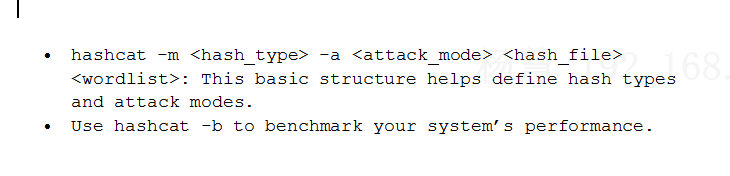
hashcat -m <hash_type> -a <attack_mode> <hash_file> <wordlist>

For beginners, practicing simple commands with sample hashes can minimize these errors.

2. Hardware Compatibility Issues

Hashcat heavily relies on GPUs for optimal performance, but errors like “Device not found” can occur. As of the current v7.1.2 release, these issues typically trace back to a missing platform-specific runtime rather than a generic “driver problem”: AMD needs ROCm on Linux or the HIP SDK on Windows, Intel GPUs need the Intel Graphics Compute Runtime (NEO), and Intel/AMD CPUs need the Intel CPU Runtime for OpenCL or PoCL. Ensure the correct runtime for your specific hardware is installed, and run hashcat -I to confirm the device is detected before troubleshooting further. Optimizing GPU settings, like enabling overclocking, can also boost performance for how to use Hashcat Windows users.

3. Hash Mode Errors

A frequent mistake is misunderstanding hash formats. For example, using an MD5 hash with an SHA256 mode will result in a mismatch error. To resolve this, identify the correct hash type using tools like Hash-Identifier. Selecting the right mode in the command (e.g., -m 0 for MD5) is essential for effective password recovery tool operations.

4. Insufficient Memory or Resource Allocation

Running complex Hashcat commands on low-memory systems may lead to crashes or errors. Optimizing configurations by limiting workload size (–workload-profile) or using incremental modes can reduce memory strain.

5. Driver or Software Compatibility Problems

Outdated drivers or incompatible software often cause runtime issues. To avoid this, update your GPU drivers regularly and verify that your system libraries align with Hashcat’s requirements. For example, digital forensic tools users should keep dependencies updated to maintain smooth operations.

By addressing these errors proactively, you can ensure a seamless Hashcat experience and maximize its efficiency.

Troubleshooting Techniques

1. Using Hashcat Logs

Logs are your best friend when diagnosing issues with how to use Hashcat. Hashcat generates detailed log files that provide insights into errors and performance metrics. Look for key messages like “Hash type not supported” or “Device not found” to pinpoint the root cause. By regularly reviewing these logs, you can proactively address issues before they escalate.

For example, if you’re troubleshooting a password recovery tool error, the logs may highlight incorrect syntax or unsupported hardware configurations. Familiarizing yourself with these messages ensures smoother operations.

2. Community Support and Forums

The Hashcat community is an invaluable resource for troubleshooting. Platforms like Hashcat’s official forums, Reddit, and cybersecurity-focused groups often have experts ready to help. Whether you’re exploring how to use Hashcat to crack password or facing GPU-related issues, chances are someone has encountered—and solved—your problem.

For instance, many professionals in digital forensics share their success stories and solutions on these platforms, offering real-world insights. Be specific when asking questions to get the most helpful responses.

digital-forensics

3. Testing with Known Hashes

One of the simplest ways to verify your Hashcat setup is by testing it with known hashes. Using sample hashes such as MD5 or SHA256 helps validate your configurations and ensures that your digital forensic tools are functioning correctly.

Follow these steps:

  • Generate a known hash for a test password.
  • Run a Hashcat command using the correct mode and hash file.
  • Verify that Hashcat cracks the hash successfully.

This process not only builds confidence but also helps identify potential errors in your setup, making your Hashcat experience seamless.

By leveraging logs, community expertise, and test hashes, you can troubleshoot effectively and maintain a high level of performance in your data recovery tool operations.

Tips for Efficient Use of Hashcat

1. Optimizing Performance

Maximizing the performance of how to use Hashcat starts with configuring it for your specific system. Fine-tune settings like workload profiles (–workload-profile) to balance speed and resource usage. For GPU setups, ensure that overclocking is performed cautiously to prevent overheating while enhancing performance.

When utilizing digital forensic tools, pairing Hashcat with high-end GPUs, like NVIDIA RTX series, can drastically reduce processing time. Also, allocate adequate memory and update GPU drivers regularly to maintain peak efficiency in this password recovery tool.

Workload profile (-w): Controls how aggressively Hashcat uses your hardware.

  • -w 1— Low: safe to run alongside normal desktop use
  • -w 2— Default: balanced speed and system responsiveness
  • -w 3— High: recommended for a dedicated forensic workstation
  • -w 4— Nightmare: maximum speed, may cause the system to become unresponsive

Device selection (-d): Lets you target specific GPUs/CPUs, e.g. -d 1,2 to run across two GPUs on a multi-card forensic server. Use hashcat -I first to list all detected devices and confirm their ID numbers.

2. Combining with Other Tools

Hashcat’s power can be amplified by combining it with other tools. For instance, pairing Hashcat with John the Ripper can create hybrid attack scenarios, leveraging the strengths of both tools. Similarly, use Hash-Identifier to accurately detect hash types before cracking. This combination is especially effective in digital forensics tools, where accuracy and speed are crucial.

Since v7.0.0, Hashcat also ships with an Assimilation Bridge, which lets you plug additional compute resources (extra CPUs, FPGAs, or custom embedded interpreters) into the cracking pipeline alongside your GPUs, and a Python Bridge (with an experimental Rust Bridge added in v7.1.2) that lets you write custom hash-mode extensions without touching the C codebase. On Linux, v7.1.x also adds native hardware monitoring for AMD GPUs, Intel GPUs, and CPUs via sysfs, so you can watch temperature and utilization directly from the status screen without a third-party monitoring tool.

3. Understanding Hashcat’s Limitations

While Hashcat is a robust tool, it’s not always the best solution for every scenario. Tasks involving highly complex passwords or non-standard hash formats may exceed its capabilities. For such cases, consider alternatives like SalvationDATA’s specialized solutions. Their data recovery tool and forensic platforms offer advanced features tailored for professional needs.

For example, SalvationDATA provides end-to-end forensic software designed to handle a wide range of password recovery challenges, making it a powerful complement to Hashcat in digital forensics workflows.

salvationdata

By optimizing performance, integrating complementary tools, and understanding its limitations, you can leverage the full potential of Hashcat while knowing when to seek alternative solutions. This balanced approach ensures efficiency and reliability in professional environments.

Conclusion

Mastering how to use Hashcat can transform the way professionals approach password recovery and digital forensics tasks. This article has covered essential aspects, from understanding system requirements and installation to troubleshooting common errors and optimizing performance. By following the steps outlined, you can overcome challenges like syntax errors, hardware compatibility issues, and hash mode mismatches with ease.

Integrating Hashcat with other tools such as John the Ripper or Hash-Identifier further enhances its functionality, while acknowledging its limitations ensures you know when to turn to advanced solutions like SalvationDATA’s digital forensic tools and data recovery tool.

Hashcat is a powerful and flexible tool that you can’t do without if you’re a seasoned professional or just starting out in digital forensics. By using these tips and tricks — and staying current with each new release, since v7.1.2 as of August 2026 already carries a hotfix and unpatched CVEs of its own — you can get the most done and feel confident taking on even the hardest password recovery tasks.

Frequently Asked Questions

1.What is Hashcat and how can it help with password recovery?

Hashcat is a powerful password recovery tool designed to crack various types of password hashes. It supports multiple hash algorithms, making it ideal for professionals in digital forensics and cybersecurity. With Hashcat, you can recover lost passwords efficiently using advanced hardware setups like GPUs.

2.What are the system requirements, and what hardware works best in 2026?

Hashcat v7.1.2 runs on Windows, Linux, and macOS, and performs best with a dedicated GPU (AMD needwos ROCm/HIP SDK, Intel needs the NEO runtime). More VRAM translates almost directly into cracking speed — run hashcat -b to benchmark your own setup.

3. What should I do if I encounter errors?

Check the Hashcat logs first, and run hashcat -I to confirm your device is detected — most “Device not found” errors trace back to a missing runtime rather than a bad driver. For tool-specific issues, the Hashcat community forums and official documentation are the best next stop; if the case itself calls for more than password cracking, that’s where SalvationDATA’s own forensic tools come in.

4.Can Hashcat crack RAR or ZIP password-protected archives?

Yes — RAR5 (mode 13000) and ZIP/ZipCrypto (mode 13600) are both supported. You’ll first need to extract the hash from the archive using a companion tool from the hashcat-utils project before feeding it into Hashcat.

5.Is Hashcat safe and legal to use?

Hashcat itself is legal, open-source software; legality depends on whether you’re authorized to recover the password in question. Note that v7.1.2 has three disclosed, still-unpatched vulnerabilities (as of mid-2026) — run it in an isolated VM when handling untrusted files.

6.Does Hashcat have a GUI?

No official one — Hashcat is command-line by design for full control over performance flags. Community GUI wrappers exist, and forensic suites like SalvationDATA’s tools offer a graphical front end for similar workflows.

7.What are Hashcat’s limitations, and why pair it with SalvationDATA?

Hashcat isn’t built for highly complex passwords or cases needing deeper forensic analysis rather than brute-force recovery. For those scenarios, SalvationDATA’s digital forensics and data recovery tools complement Hashcat with capabilities tailored to professional investigations.